
Convert PDF pages to JPG or PNG images
Save every page of a PDF as a JPG, PNG, BMP, GIF or multi-page TIFF image, at the resolution you need.
PDFClubs apps run on Windows 10 and 11 PCs.
- No upload
- Batch convert
- Free trial
- Windows 10 & 11
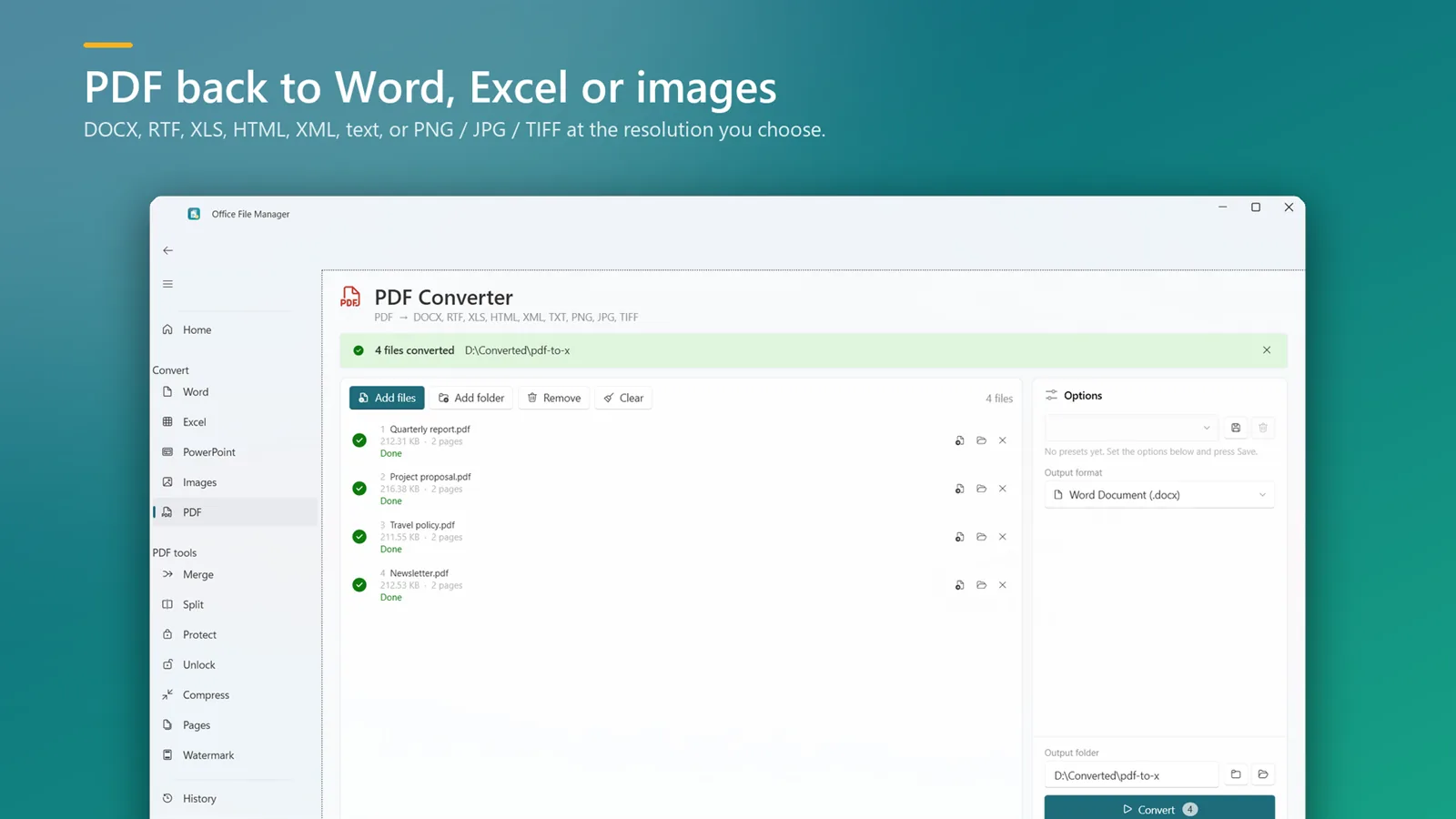
How to convert a PDF to images
- Install Office File Manager from the Microsoft Store and open the PDF converter.
- Add your PDFs or drop a folder.
- Choose JPG, PNG, BMP, GIF or TIFF and set the resolution.
- Click Convert. Each page becomes an image in your output folder.
Good to know
- Pick a higher resolution for printing, a lower one for sharing online.
- Multi-page TIFF keeps every page in one image file.
- Going the other way? See Image to PDF.
PDF to JPG questions
Can I choose the image quality?
Yes. Set the resolution before converting.
Does every page become a separate image?
Yes for JPG, PNG, BMP and GIF. Multi-page TIFF keeps all pages in one file.
Can I convert many PDFs at once?
Yes. Add several files or a folder and they are converted in one run.
PDF to JPG on your PC, starting today
Try Office File Manager free from the Microsoft Store, then keep it for ₹299 once.
