
Convert PDF to Word offline on Windows
Turn PDFs into editable DOCX or RTF documents on your own PC. No upload, no file-size limit, and a whole folder converts in one go.
PDFClubs apps run on Windows 10 and 11 PCs.
- No upload
- Batch convert
- Free trial
- Windows 10 & 11
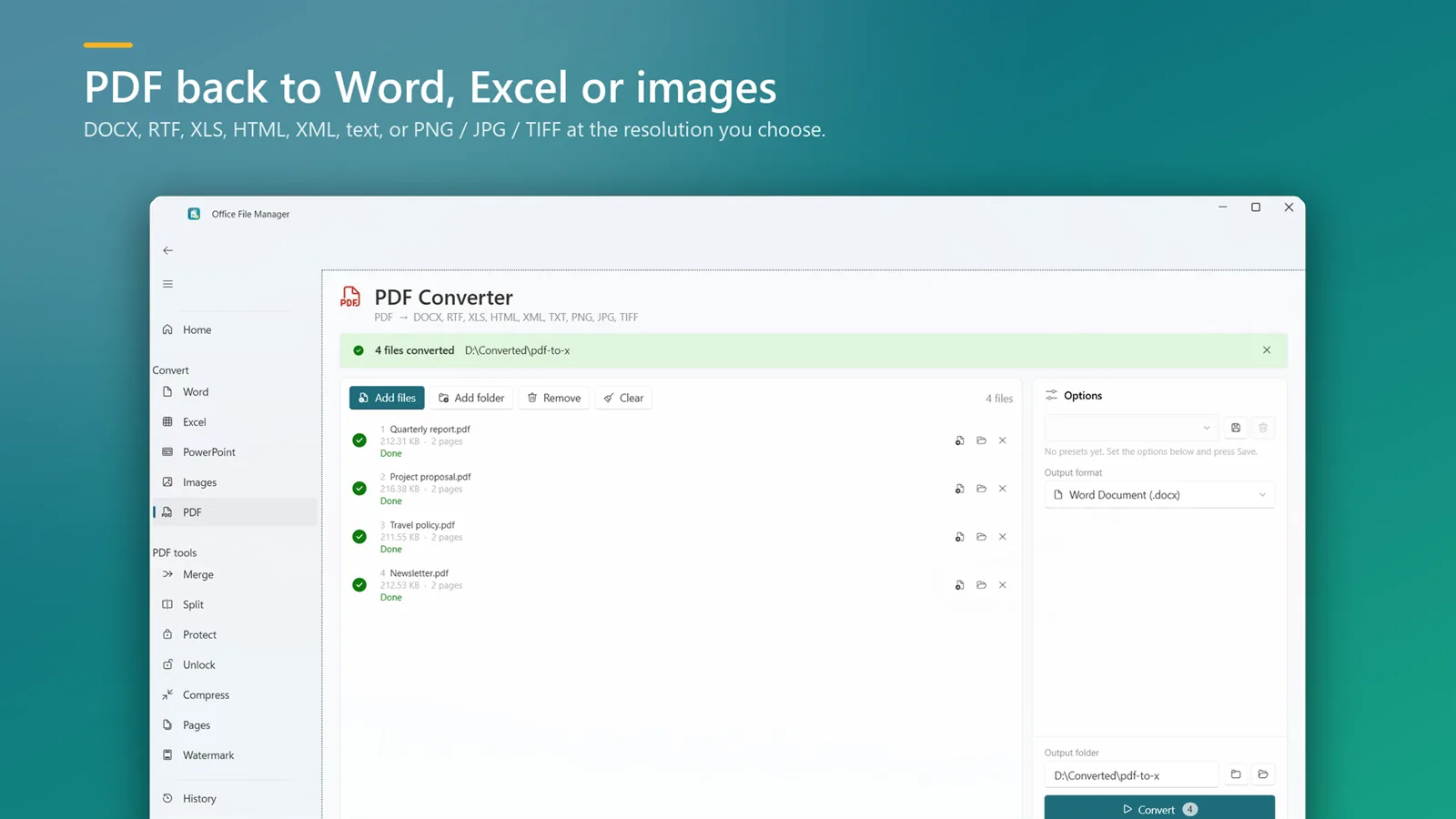
How to convert PDF to Word on Windows 11 or 10
- Install Office File Manager from the Microsoft Store and open it. The free trial includes every tool.
- Drag your PDFs — or a whole folder — onto the window, or open the PDF converter and click Add files.
- Choose Word (DOCX) or RTF as the output format and pick an output folder.
- Click Convert. Each file shows its own status; open the document or its folder with one click.
Good to know
- Scanned PDFs are pictures of pages, so those pages come into Word as images rather than editable text.
- Your original PDFs are never changed, and existing files are not overwritten unless you say so.
- Need the numbers in a spreadsheet instead? Use PDF to Excel.
PDF to Word questions
Can I convert PDF to Word without internet?
Yes. The conversion runs entirely on your computer and nothing is uploaded. The only network request is the Microsoft Store checking your licence.
Will the formatting be kept?
Text, paragraphs, tables and images are carried into an editable document. Complex layouts can need small touch-ups — true of every PDF converter — so try your own files during the free trial before you buy.
Can I convert many PDFs at once?
Yes. Drop a whole folder, including sub-folders, and every PDF in it is converted in one run with per-file status.
What happens with scanned PDFs?
A scanned PDF holds images of pages, not text, so the pages appear in Word as images.
PDF to Word on your PC, starting today
Try Office File Manager free from the Microsoft Store, then keep it for ₹299 once.
