
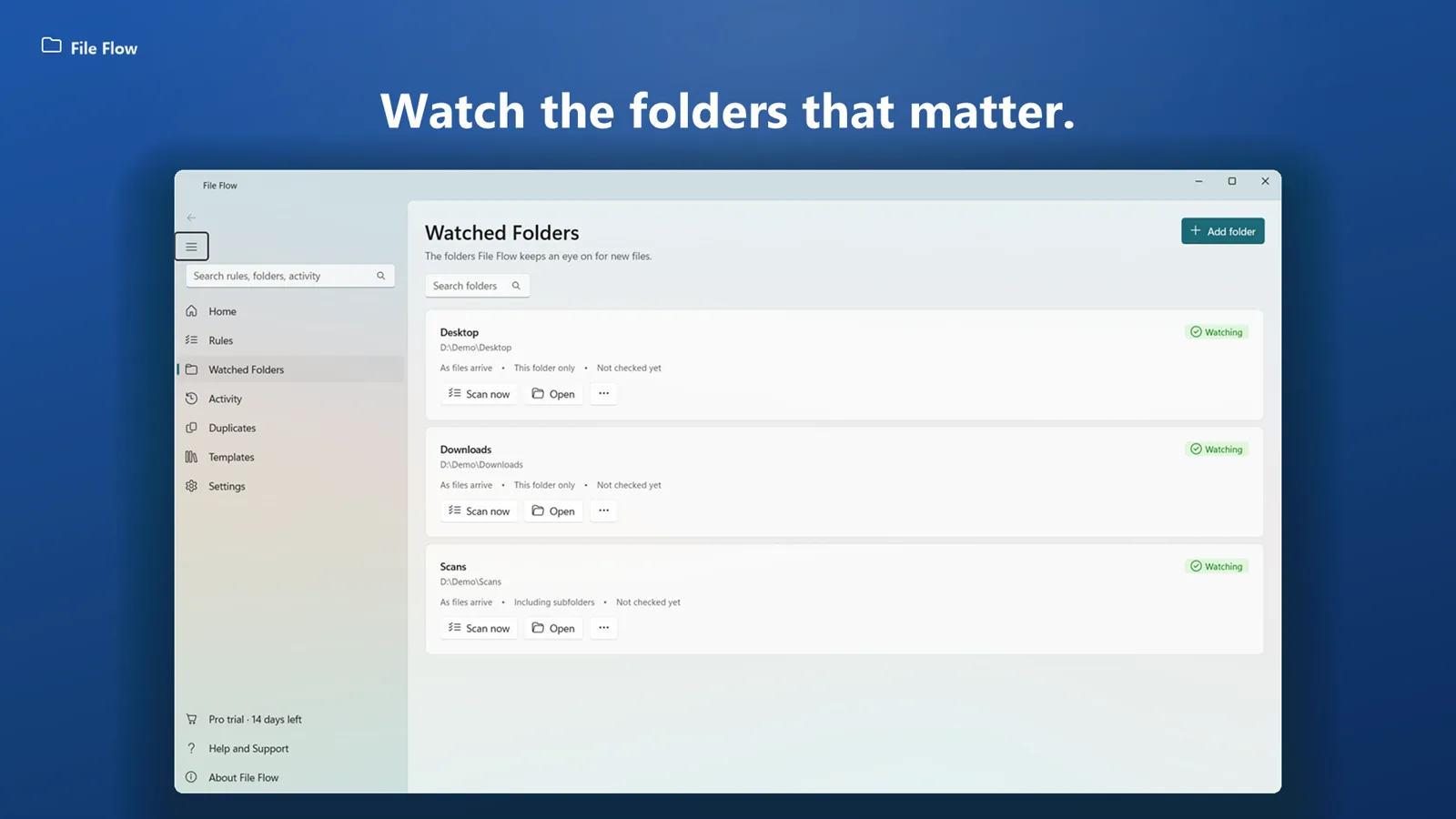
Watch folders
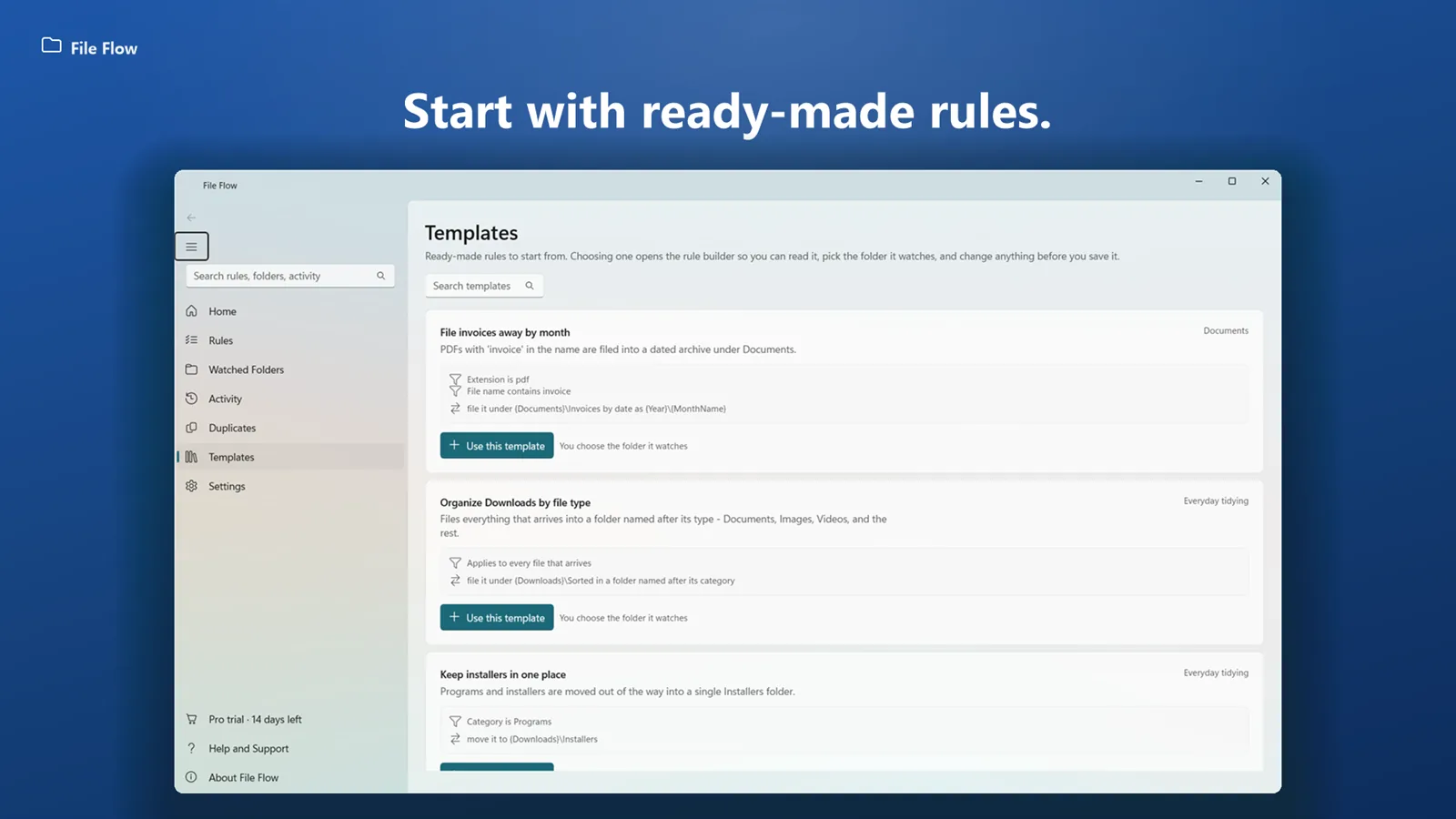
Pick the folders to keep tidy. File Flow acts as files arrive, on a schedule, or only when you ask.


Point File Flow at the folders that always get messy — Downloads, Desktop, your scans — and it sorts, renames and files every new file by your rules, the moment it arrives.
PDFClubs apps run on Windows 10 and 11 PCs.
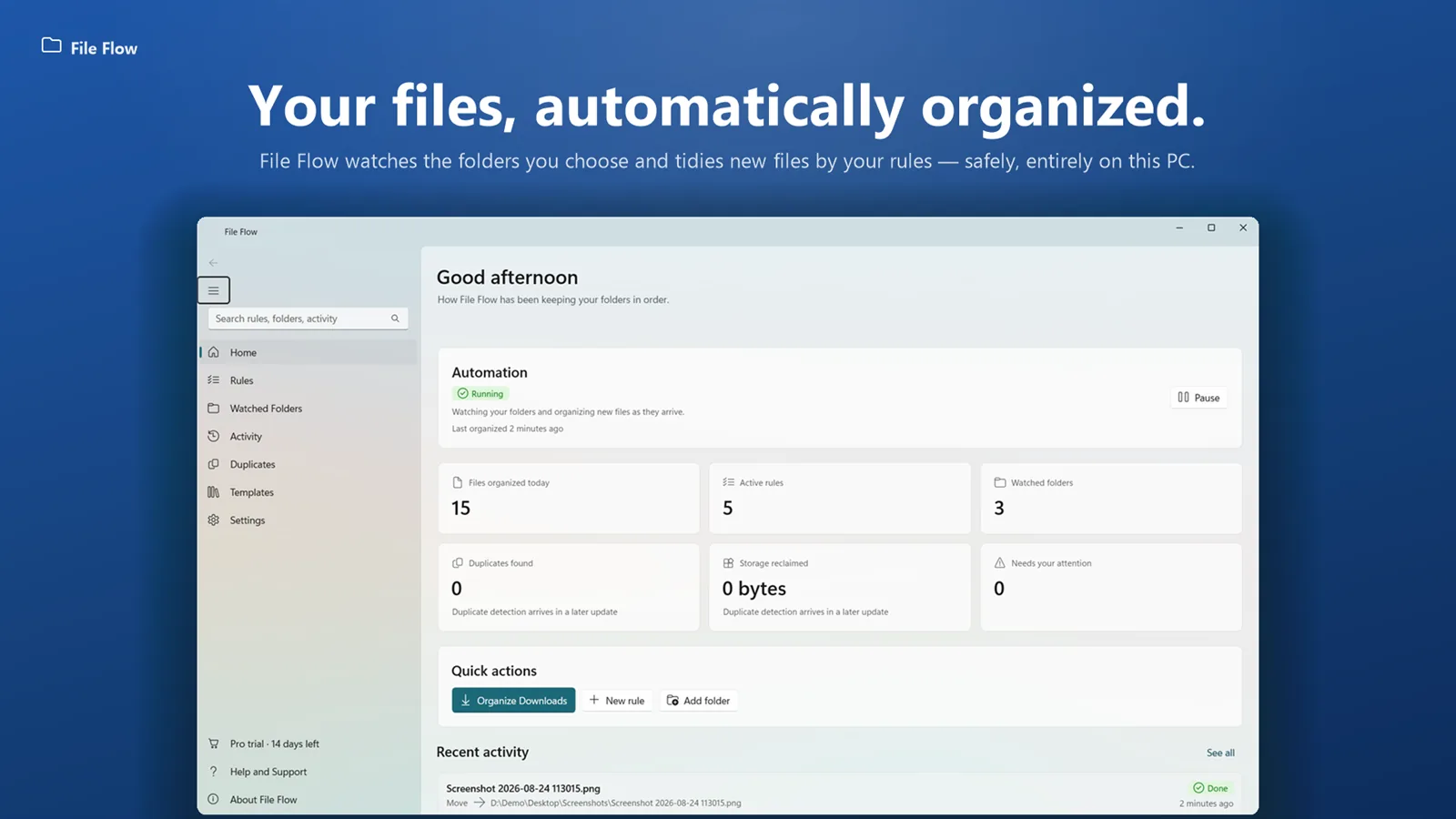
Your files, automatically organized — by rules you write in plain words.
Pick the folders to keep tidy. File Flow acts as files arrive, on a schedule, or only when you ask.
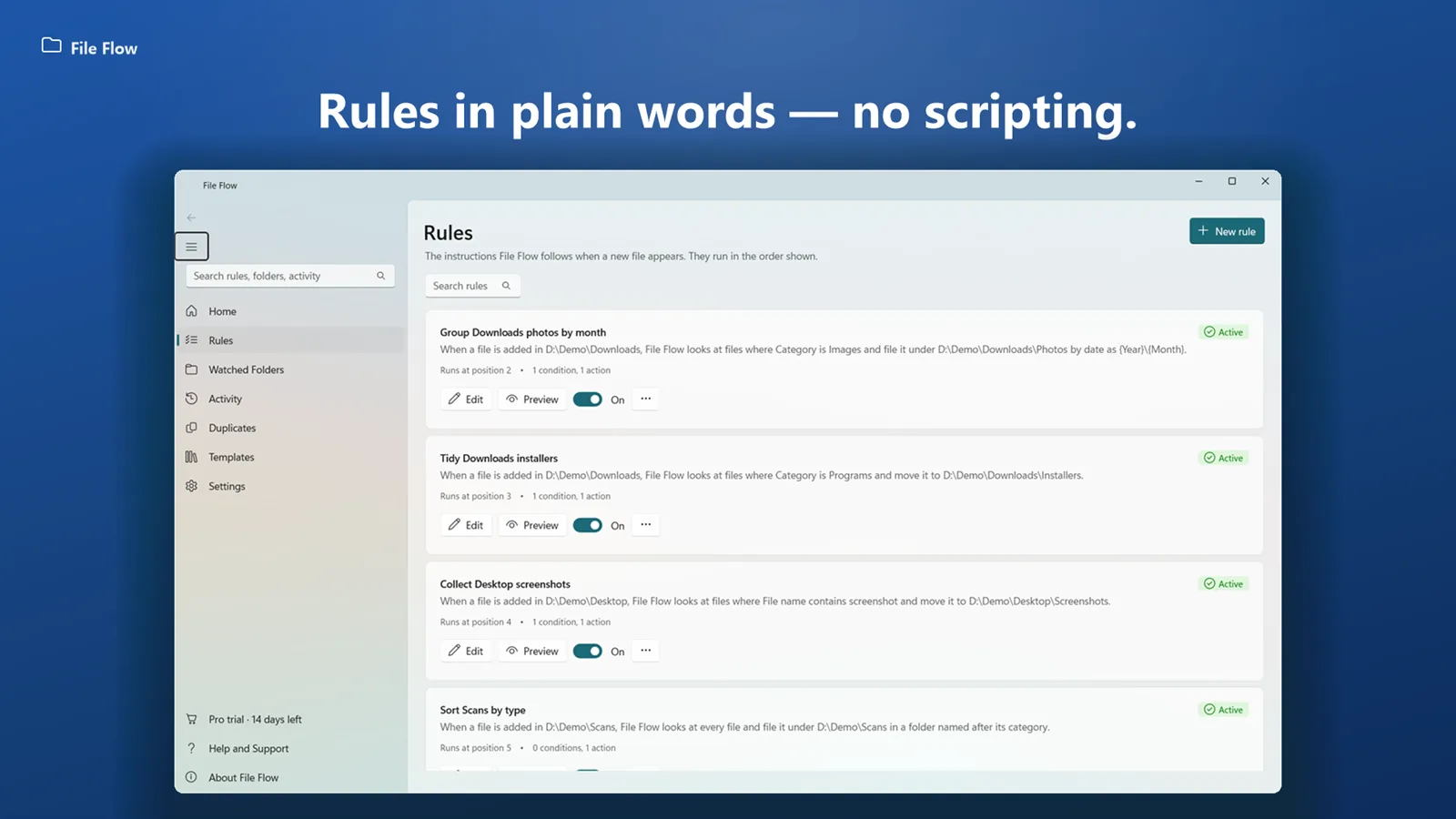
“When a file is added to Downloads, file invoices into month folders.” No scripting, no setup.
Match files by name, type, size or date, and file photos and documents into year and month folders.
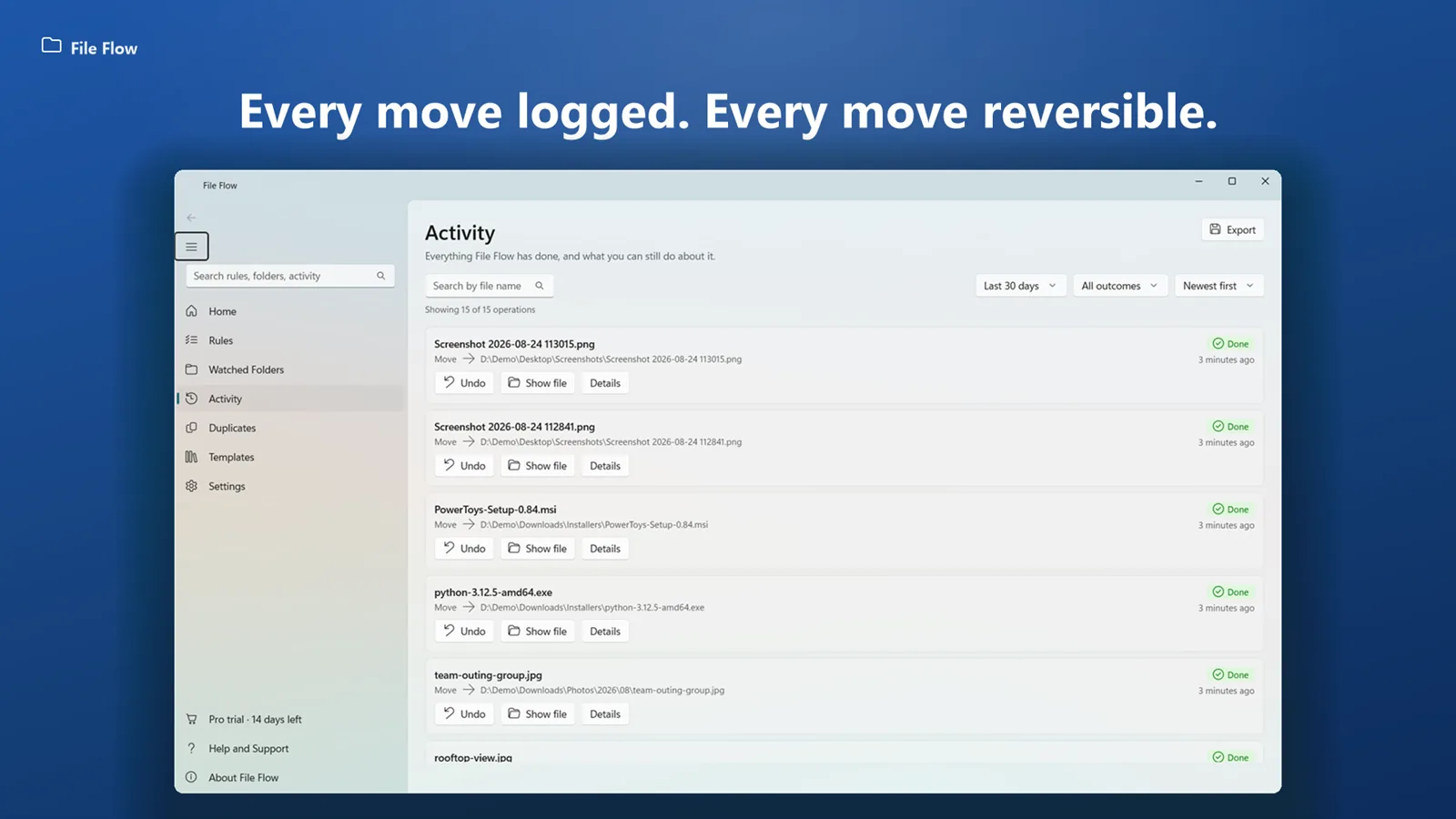
Every action is recorded in the Activity view, and every move can be undone with one click.
Never deletes files, keeps both copies on name conflicts, stays out of system folders and waits for downloads to finish.
Scan for duplicate files free; clean them up safely with Pro, always keeping one copy.
Works on its own — Microsoft Office is not needed. File Flow is free; the Pro upgrade (duplicate clean-up) is a one-time purchase with a 14-day trial.
Freeto download and use
Yes. File Flow is free to use. File Flow Pro, which adds duplicate clean-up, is a one-time upgrade — every new install includes a 14-day Pro trial.
No. File Flow never deletes files. Name conflicts keep both copies, Windows system folders are off-limits, and every move can be undone.
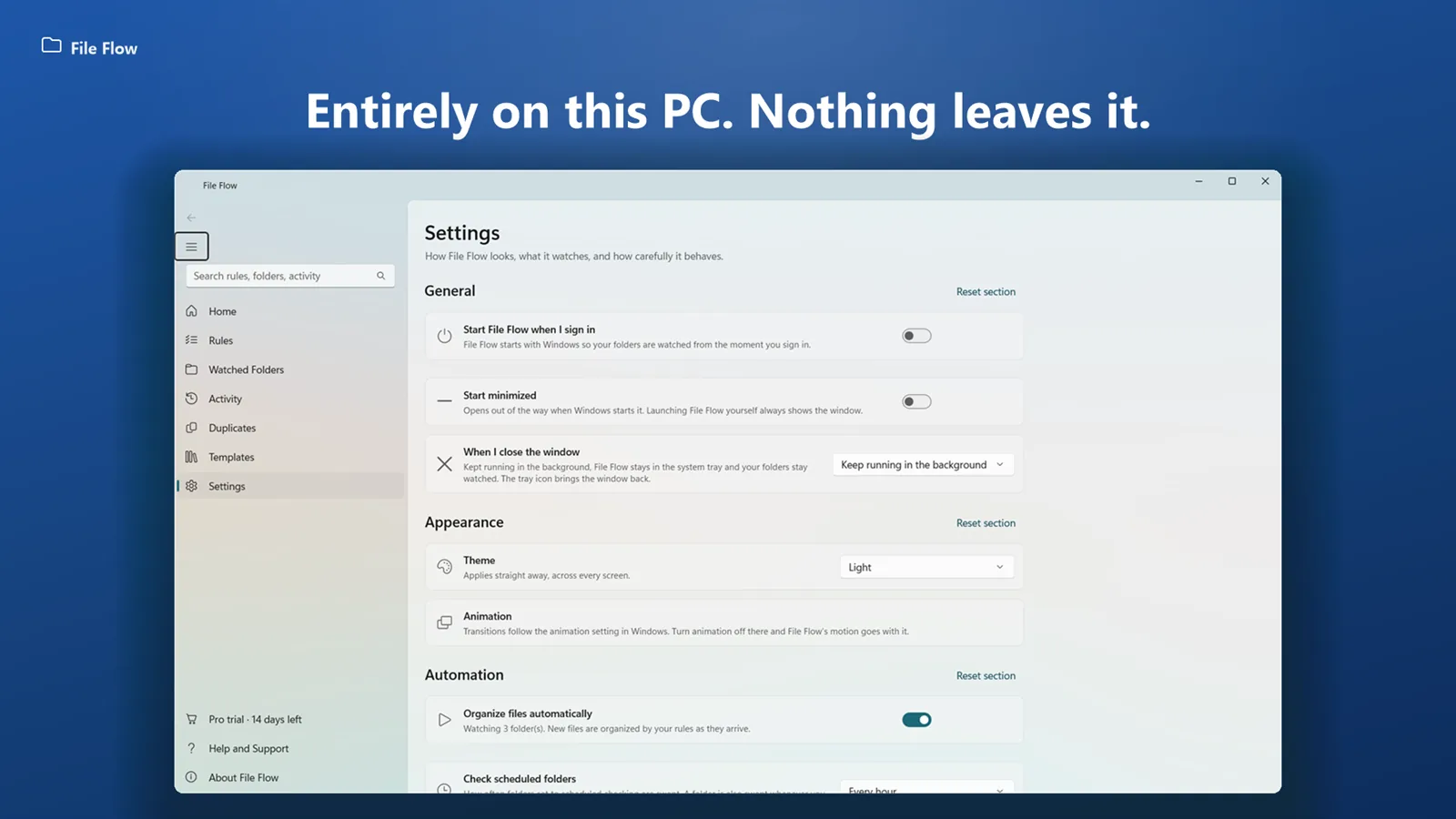
No. File Flow needs no account, no cloud and no internet connection — it organizes files entirely on your PC.
Any folders you choose — Downloads, Desktop, a scans folder and so on — except Windows system folders, which are off-limits.

Convert Word, Excel, PowerPoint, PDF and images in bulk — then merge, split, compress, protect and watermark PDFs.
Combine several PDFs into one, or split a PDF into single pages or a page range. Fully offline.
Batch-convert Word and RTF files to PDF, and PDF back to editable Word. Point it at a folder and go.

Record the full screen, one window or a region with mic and system sound and a webcam overlay. Draw while you record, then trim and export MP4 or GIF.