
Merge PDF files into one — offline
Combine any number of PDFs into a single file in the order you want. Drop whole folders in; nothing is uploaded.
PDFClubs apps run on Windows 10 and 11 PCs.
- No upload
- Batch convert
- Free trial
- Windows 10 & 11
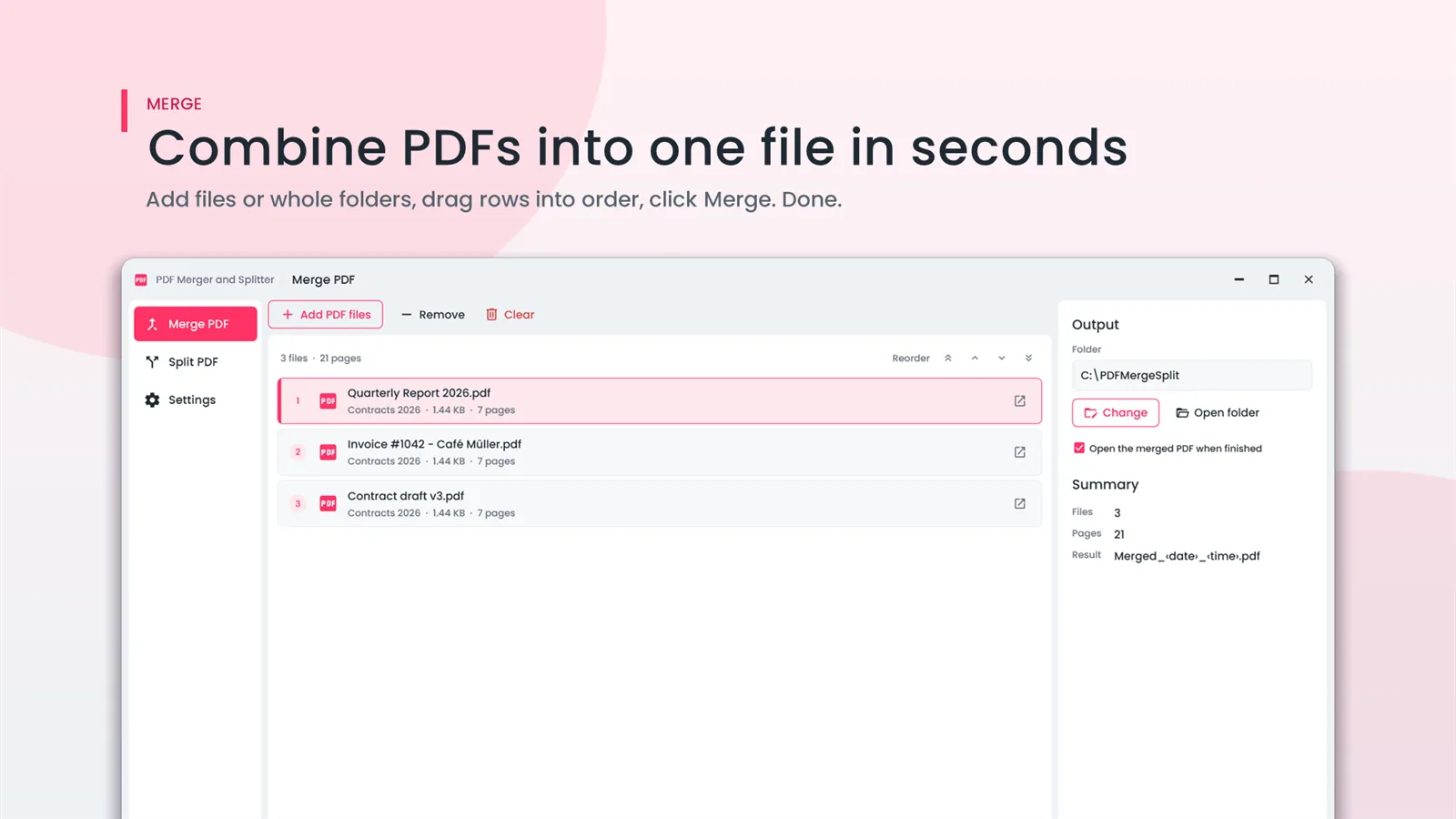
How to merge PDF files on Windows
- Install PDF Merger And Splitter from the Microsoft Store and open Merge PDF.
- Add files or drop whole folders — folders are searched for PDFs automatically.
- Drag the rows into the order you want the pages to appear.
- Click Merge. The merged PDF can open automatically when it is done.
Good to know
- Duplicates and broken files are reported by name, so nothing goes missing silently.
- Need only some pages from each file, or a bookmark per file? Office File Manager can do both.
- Merged file too large? Shrink it with Compress PDF.
Guide: How to merge PDF files on Windows 11 and 10
Guide: How to reduce PDF file size on Windows — without uploading it
Merge PDF questions
Is there a limit on how many PDFs I can merge?
There is no upload limit because nothing is uploaded — add as many files as your PC can handle.
Can I change the order of the files?
Yes. Drag the rows into the order you want before merging.
Can I merge only some pages from each PDF?
Office File Manager lets you take a page range from each file and add a bookmark per file.
What PDF Merger And Splitter users say
4.2 out of 5 from 49 ratings on the Microsoft Store.
★★★★★
Easy to Use. Downloaded app, dragged in documents and hit the merge button to create a single document. Easy to use.
★★★★★
PDF Merger and Splitter. Very nice tool which gives quick output
★★★★★
Great for merging PDFs. Combining and splitting pdfs is really easy now.
Related tools

Merge PDF on your PC, starting today
Try PDF Merger And Splitter free from the Microsoft Store, then keep it for ₹109 once.
