
Split a PDF into pages or page ranges
Break a PDF into one file per page, or pull out just the pages you need — on your own PC, with no upload.
PDFClubs apps run on Windows 10 and 11 PCs.
- No upload
- Batch convert
- Free trial
- Windows 10 & 11
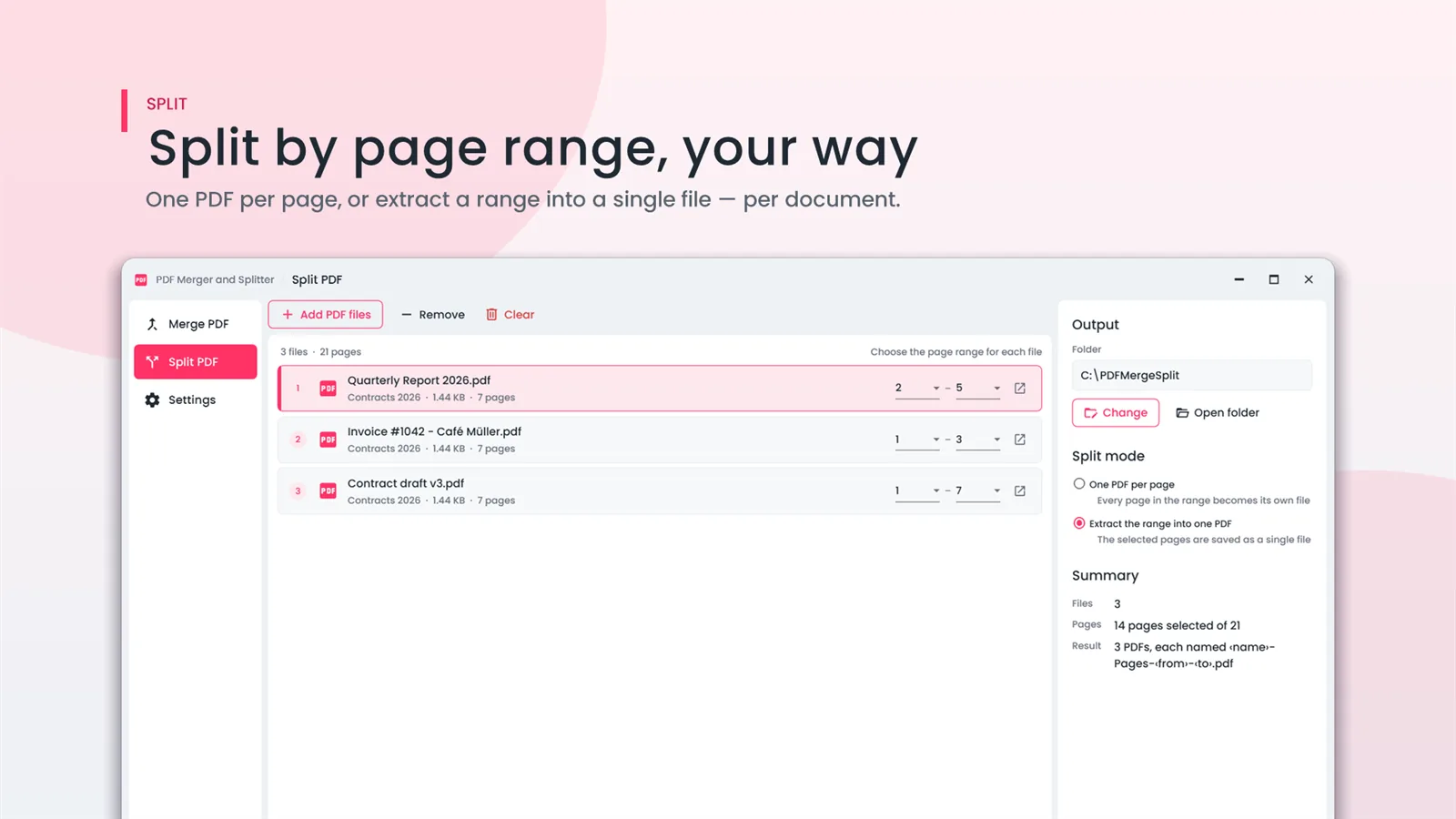
How to split a PDF on Windows
- Install PDF Merger And Splitter from the Microsoft Store and open Split PDF.
- Add one or more PDFs, or drop a folder.
- Choose one PDF per page, or enter the page range to extract.
- Click Split and open the output folder.
Good to know
- Several PDFs can be split in the same run.
- Need every N pages, custom ranges such as 1-3, 5, 8- or a split by bookmarks? Office File Manager supports all of those.
- The original PDF is never changed.
Split PDF questions
Can I extract just a few pages?
Yes. Enter the page range you want and those pages are saved as a new PDF.
Can I split by bookmarks?
Office File Manager can split by bookmarks, every N pages, or custom ranges.
Is my PDF uploaded?
No. Splitting happens on your computer.
What PDF Merger And Splitter users say
4.2 out of 5 from 49 ratings on the Microsoft Store.
★★★★★
Easy to Use. Downloaded app, dragged in documents and hit the merge button to create a single document. Easy to use.
★★★★★
PDF Merger and Splitter. Very nice tool which gives quick output
★★★★★
Great for merging PDFs. Combining and splitting pdfs is really easy now.
Related tools
Split PDF on your PC, starting today
Try PDF Merger And Splitter free from the Microsoft Store, then keep it for ₹109 once.
