
Reduce PDF file size without uploading
Shrink scanned and image-heavy PDFs so they fit in an email or upload form. See the size before and after every file.
PDFClubs apps run on Windows 10 and 11 PCs.
- No upload
- Batch convert
- Free trial
- Windows 10 & 11
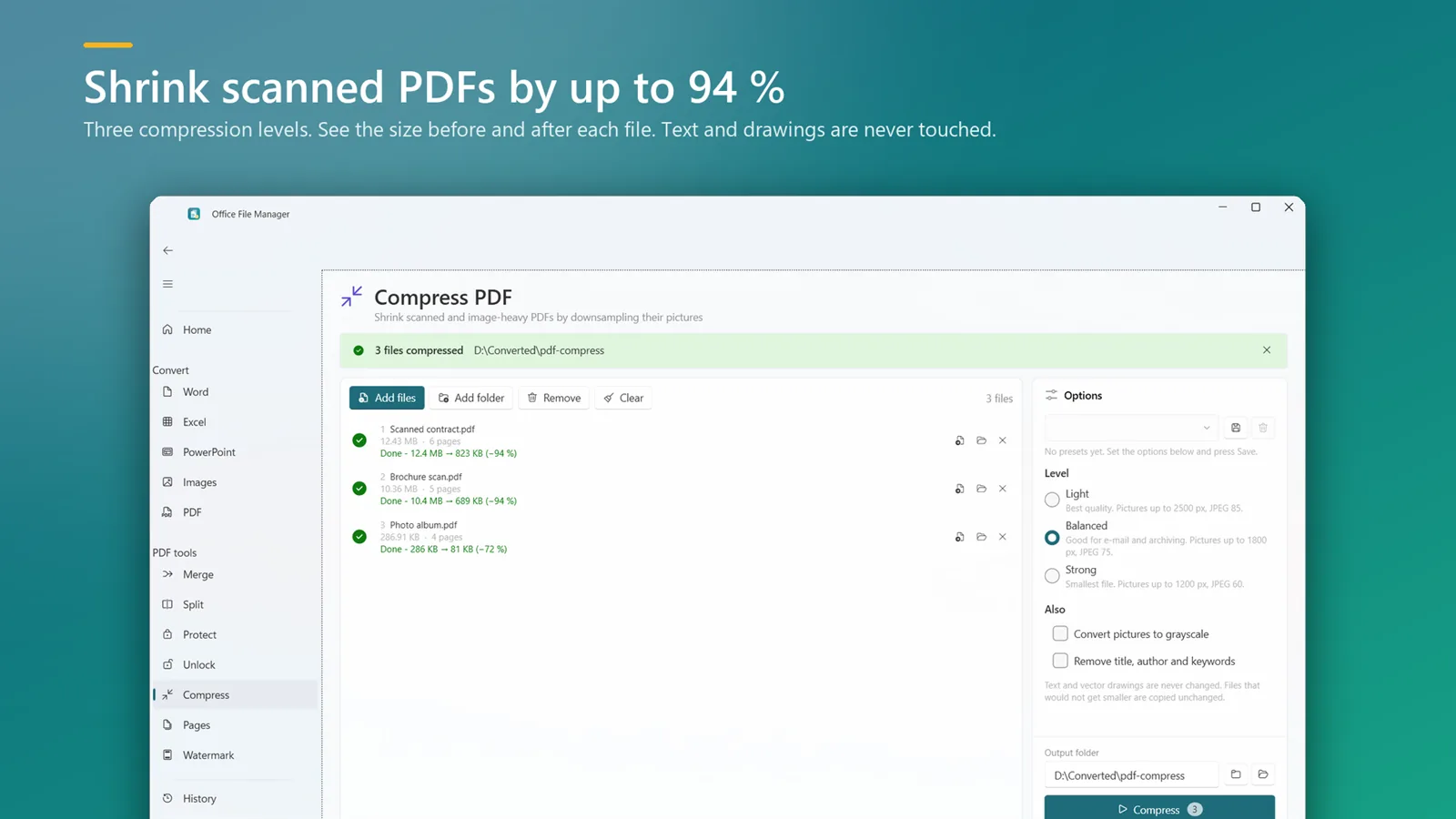
How to compress a PDF on Windows
- Install Office File Manager from the Microsoft Store and open Compress PDF.
- Add your PDFs or drop a folder.
- Pick one of the three compression levels.
- Click Compress and compare the size before and after for each file.
Good to know
- Scanned PDFs shrink the most — by up to 94% — because their pages are images.
- Text and drawings are never touched, so they stay sharp.
- PDFs that are mostly text are already small and shrink less.
Guide: How to merge PDF files on Windows 11 and 10
Guide: How to reduce PDF file size on Windows — without uploading it
Compress PDF questions
How much smaller will my PDF get?
It depends on the content. Scanned and photo-heavy PDFs can shrink by up to 94%; text-only PDFs shrink less because they are already small.
Will the text become blurry?
No. Text and drawings are left untouched; only images are recompressed.
Can I compress many PDFs at once?
Yes. Add a folder and every PDF in it is compressed in one run.

Compress PDF on your PC, starting today
Try Office File Manager free from the Microsoft Store, then keep it for ₹299 once.
