
Turn photos and scans into one PDF
Combine JPG, PNG, HEIC, WEBP, TIFF, GIF and BMP images into a single PDF, with the page size, margins and quality you choose.
PDFClubs apps run on Windows 10 and 11 PCs.
- No upload
- Batch convert
- Free trial
- Windows 10 & 11
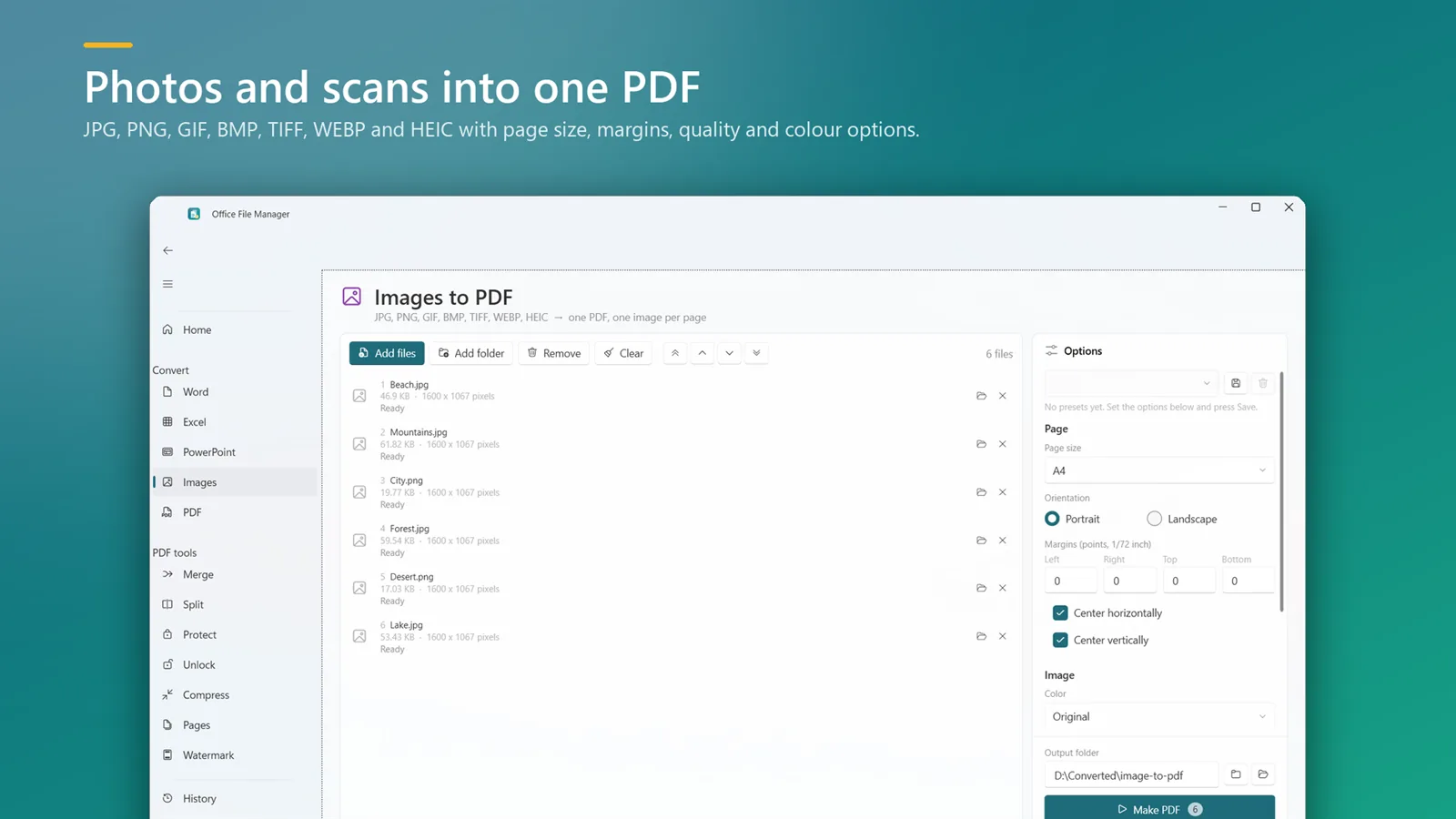
How to convert images to PDF on Windows
- Install Office File Manager from the Microsoft Store and open Images to PDF.
- Add your photos or scans, or drop a folder of them.
- Pick page size, orientation, margins, quality and colour options.
- Click Make PDF to get one PDF with an image per page.
Good to know
- iPhone photos (HEIC) and WEBP images are supported, as well as JPG, PNG, GIF, BMP and TIFF.
- Image tools work without Microsoft Office.
- File too big to email? Run it through Compress PDF afterwards.
Guide: How to reduce PDF file size on Windows — without uploading it
Image to PDF questions
Can I convert HEIC photos to PDF?
Yes. HEIC photos from iPhones are supported along with JPG, PNG, GIF, BMP, TIFF and WEBP.
Can I put many images into one PDF?
Yes. All the images you add become pages of a single PDF.
Do I need Microsoft Office?
No. Image to PDF works without Office.

Image to PDF on your PC, starting today
Try Office File Manager free from the Microsoft Store, then keep it for ₹299 once.
