
Convert PDF to Excel on your PC — no upload
Get the tables out of invoices, statements and reports and into a spreadsheet, without sending the files to a website.
PDFClubs apps run on Windows 10 and 11 PCs.
- No upload
- Batch convert
- Free trial
- Windows 10 & 11
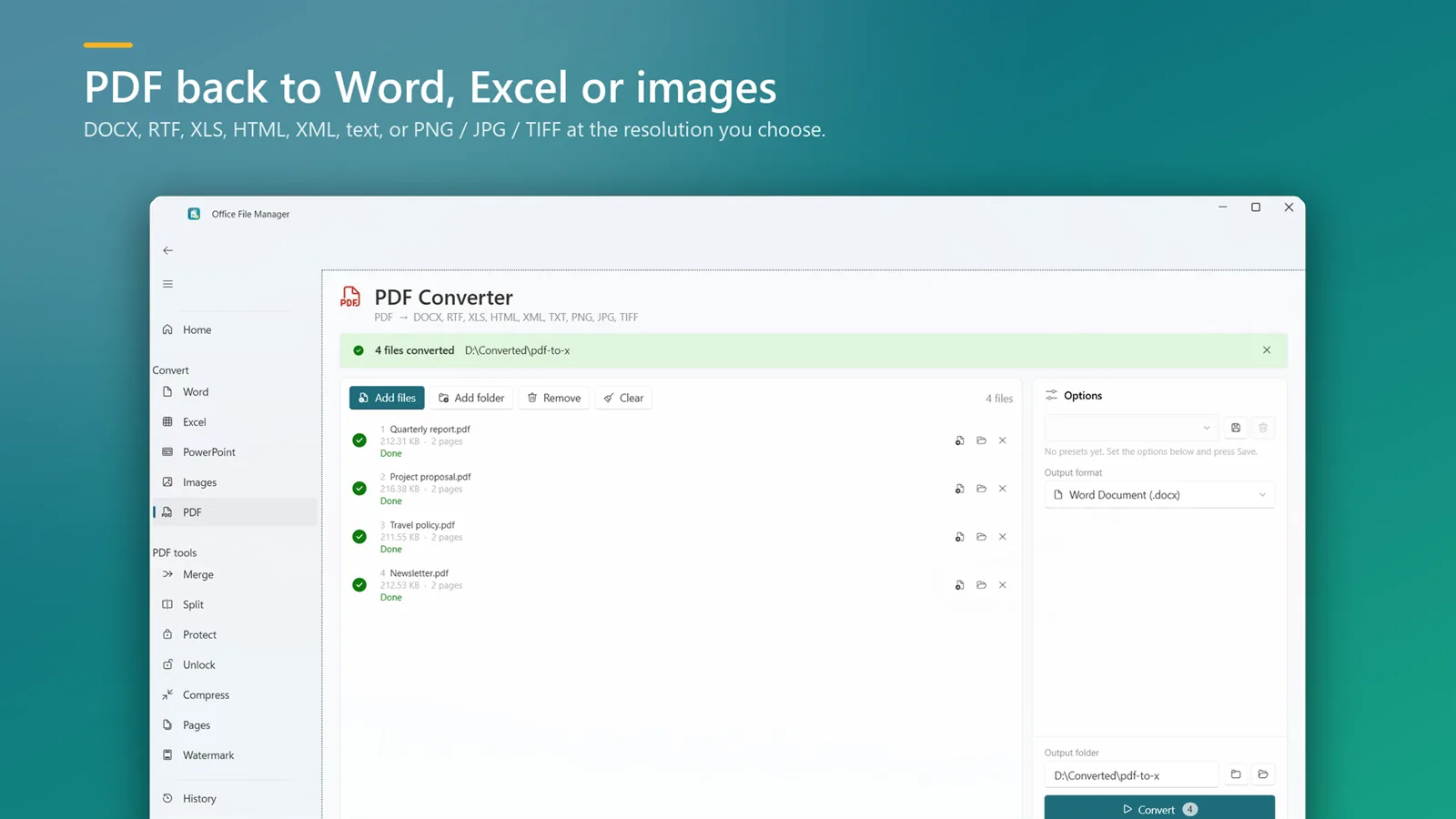
How to convert PDF to Excel on Windows
- Install Office File Manager from the Microsoft Store and open it.
- Open the PDF converter and add your PDFs, or drop a folder onto the window.
- Choose Excel as the output format and an output folder.
- Click Convert and open the spreadsheet when it is done.
Good to know
- Works best with PDFs that contain real text — for example ones exported from Excel, Word or accounting software.
- Scanned PDFs contain pictures of pages, so there is no text to put into cells.
- Bank statements and invoices stay on your PC — useful when the data is confidential.
PDF to Excel questions
Will the table columns be kept?
Text-based tables come across as rows and columns. Unusual layouts may need tidying in Excel, so test your own PDFs during the free trial.
Can I convert several PDFs at once?
Yes. Add as many files as you like, or a whole folder, and they are converted in one batch.
Is my data uploaded anywhere?
No. The conversion runs on your computer and the files never leave it.

PDF to Excel on your PC, starting today
Try Office File Manager free from the Microsoft Store, then keep it for ₹299 once.
