
Office File Manager
Convert Word, Excel, PowerPoint, PDF and images in bulk — then merge, split, compress, protect and watermark PDFs.
₹299 ₹374 20% off · ends 30 Dec one-time · free trial

Word, Excel, PowerPoint and images to PDF and back, plus every everyday PDF tool. It all runs on your own PC. Try free, then pay once — no subscription.
PDFClubs apps run on Windows 10 and 11 PCs.
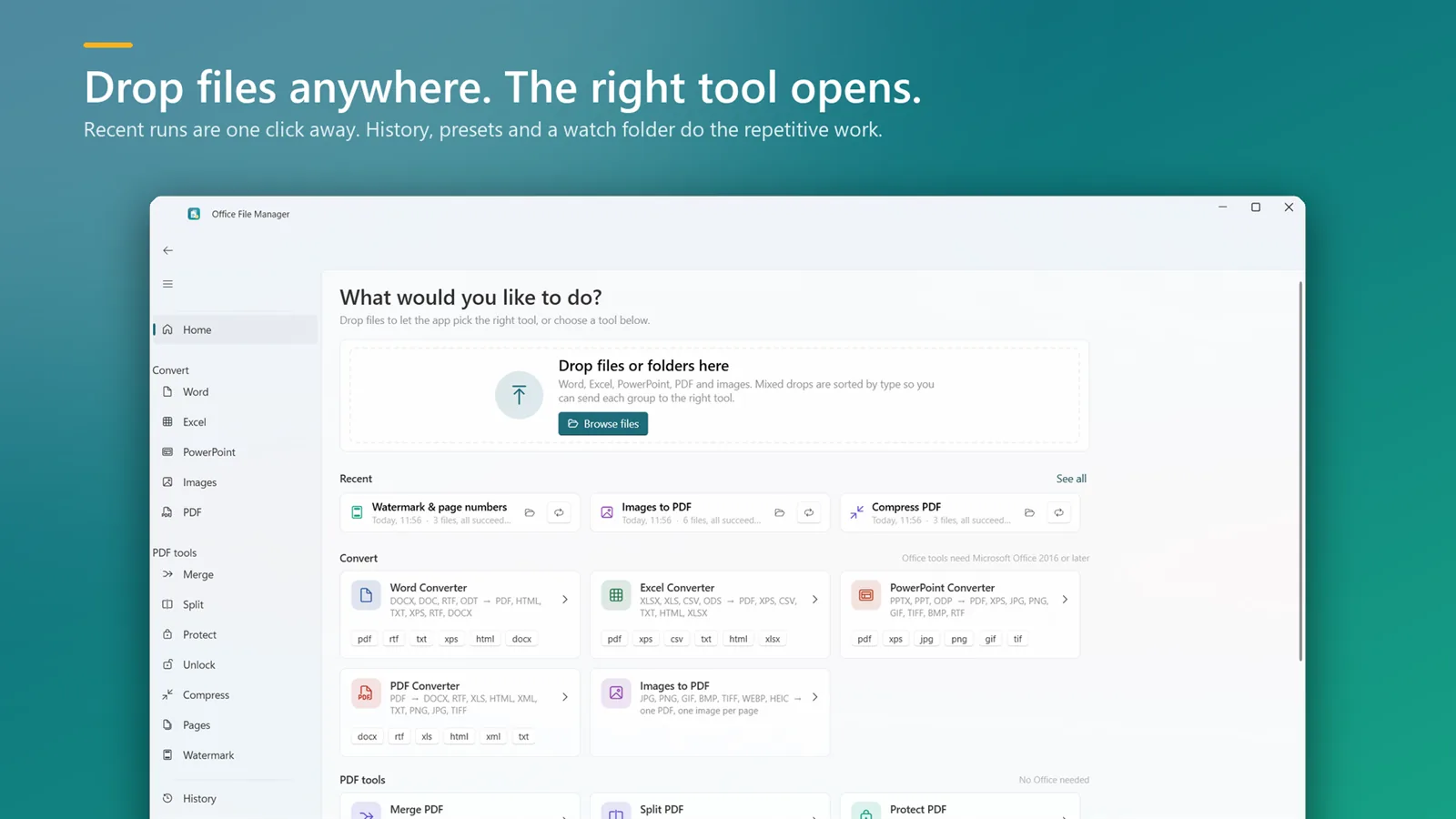
Pick a task to see how it works and which app does it.
Editable DOCX or RTF from any PDF.
DOCX, DOC, RTF and ODT to PDF in bulk.
Pull tables out of PDFs into a spreadsheet.
XLSX, XLS, CSV and ODS to PDF.
Slides to PDF, JPG or PNG.
JPG, PNG, HEIC and more into one PDF.
Every page as JPG, PNG or TIFF.
Combine many PDFs into one file.
Single pages or chosen page ranges.
Shrink scanned and image-heavy PDFs.
Passwords and print/copy/edit rights.
Desktop apps that handle whole folders, keep your files private, and are yours after one payment.
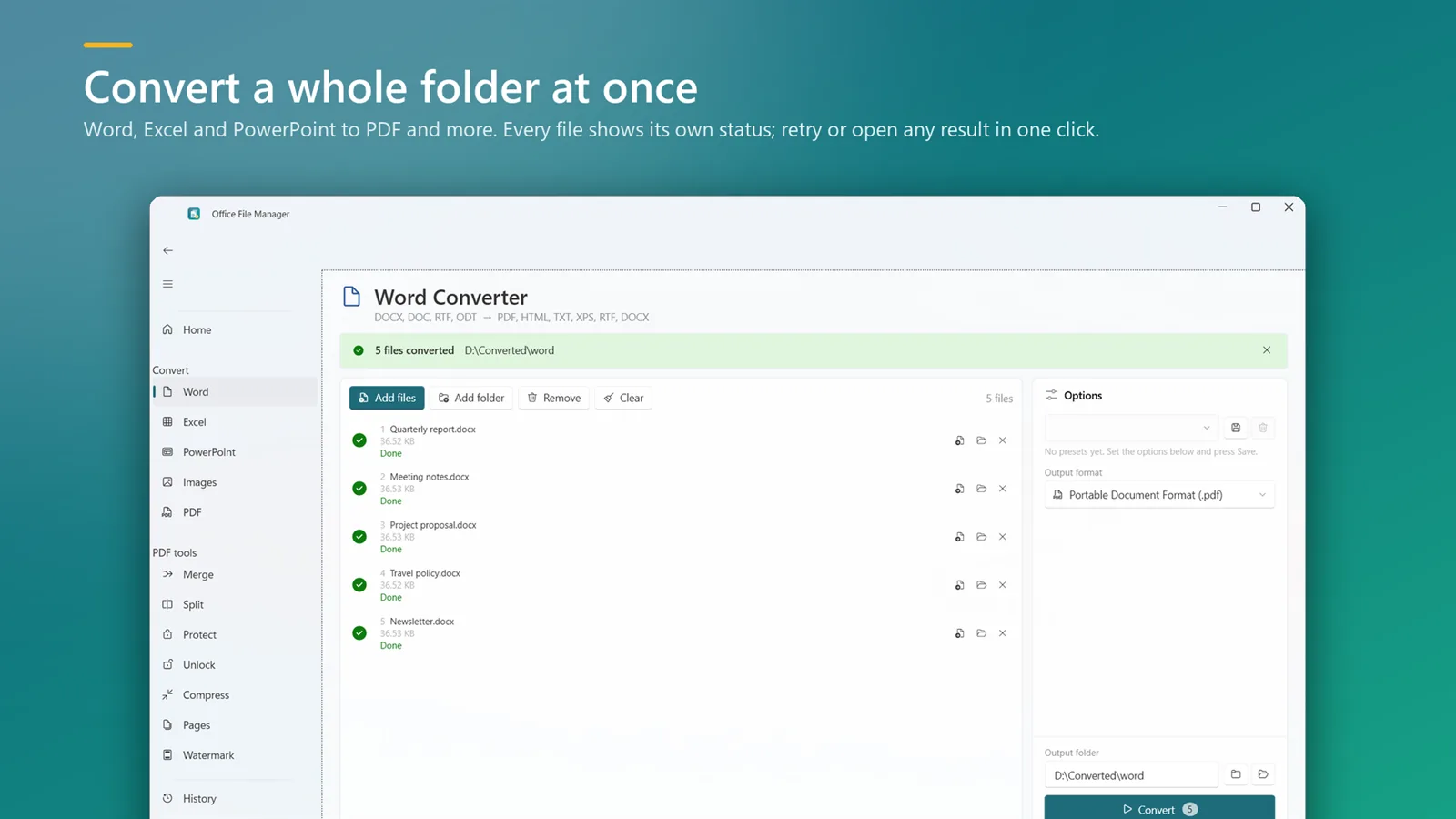
Drop a folder of Word, Excel or PowerPoint files — sub-folders included — pick a format, press Convert. Every file shows its own status, so you can see what succeeded and retry what didn't.
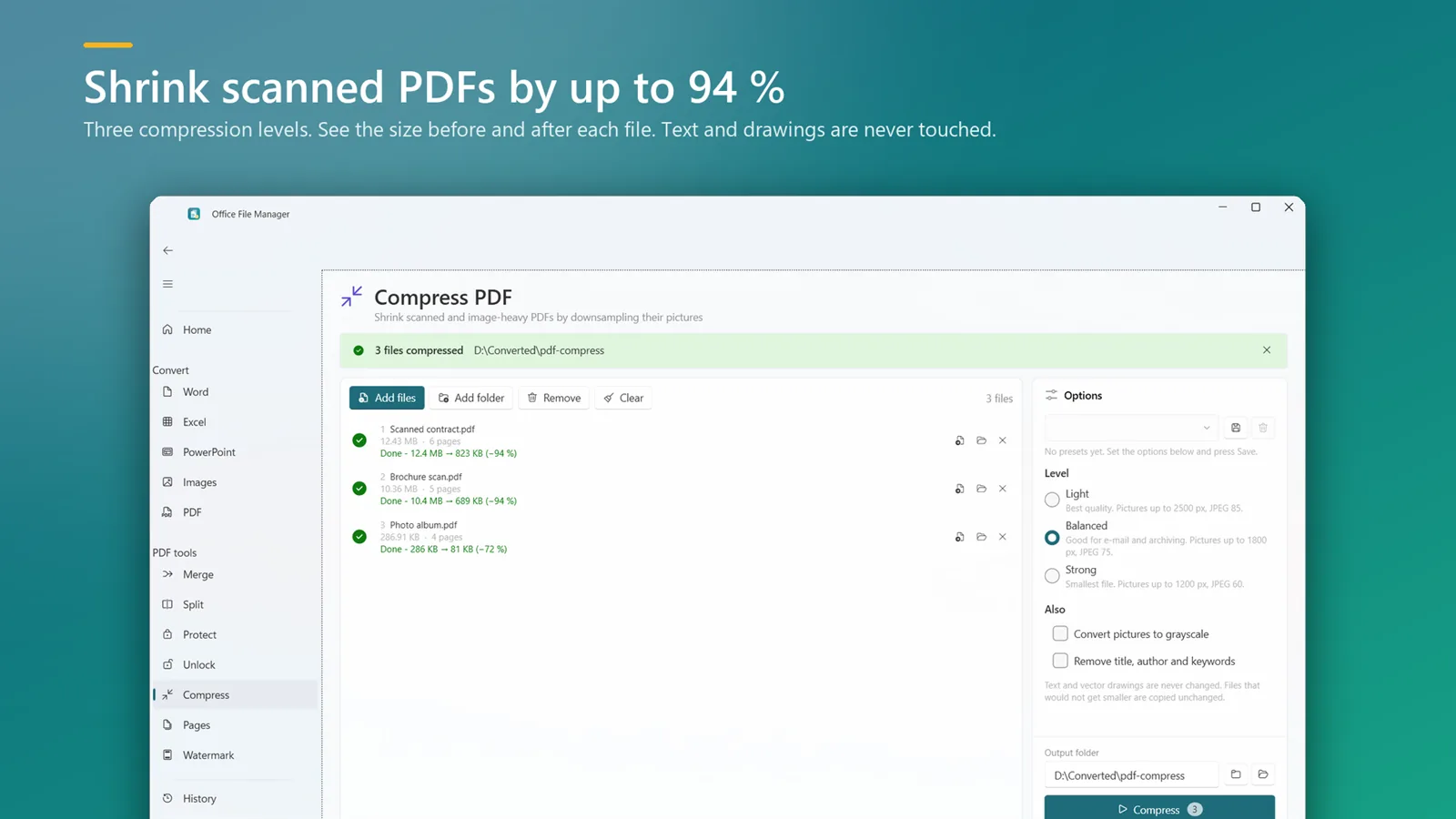
The everyday PDF jobs sit next to the converters. Shrink scanned PDFs by up to 94%, add a password, reorder pages or stamp page numbers, without opening another app.
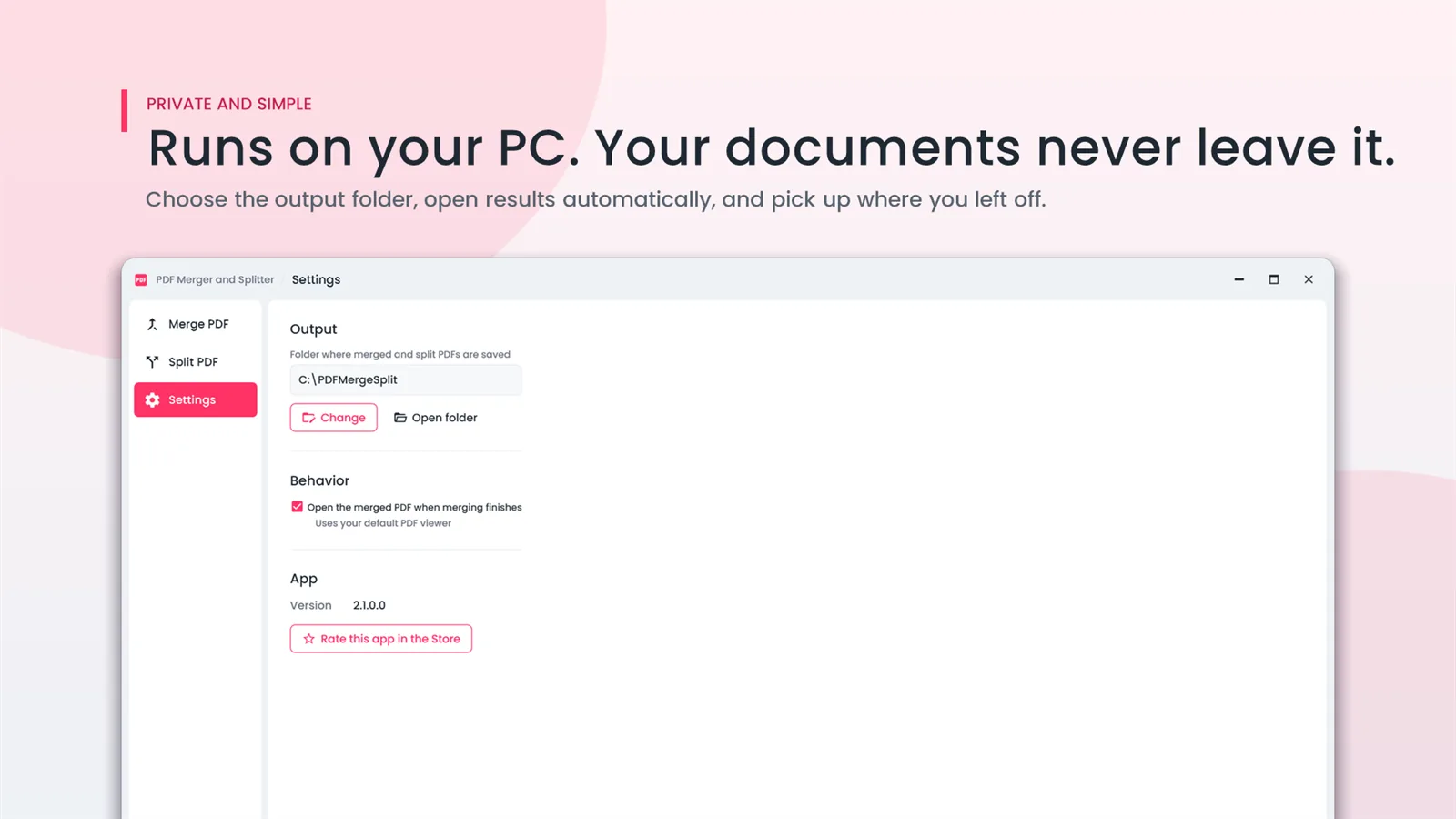
Online converters upload every file to someone else's server. PDFClubs apps do all the work on your own computer — no upload, no file-size limit, no account to create.
Every app runs on your PC and installs from the Microsoft Store. Paid apps have a free trial and a one-time price; File Flow is free. Compare them →
Convert Word, Excel, PowerPoint, PDF and images in bulk — then merge, split, compress, protect and watermark PDFs.
Combine several PDFs into one, or split a PDF into single pages or a page range. Fully offline.
Batch-convert Word and RTF files to PDF, and PDF back to editable Word. Point it at a folder and go.

Automatically sorts, renames and files everything that lands in Downloads, Desktop or any folder, by rules you set. Every move is logged and undoable.

Record the full screen, one window or a region with mic and system sound and a webcam overlay. Draw while you record, then trim and export MP4 or GIF.
PDF Merger And Splitter: 4.2 out of 5 from 49 ratings on the Microsoft Store.
★★★★★
Easy to Use. Downloaded app, dragged in documents and hit the merge button to create a single document. Easy to use.
★★★★★
PDF Merger and Splitter. Very nice tool which gives quick output
★★★★★
Great for merging PDFs. Combining and splitting pdfs is really easy now.
Three ways to record your screen with sound on Windows 11 and 10 — Snipping Tool, Xbox Game Bar and a recorder that captures mic and system audio together.
Plan, record and share a screen tutorial or online lesson on a Windows laptop or PC — with your voice, a webcam overlay and on-screen drawing.
Windows can't combine PDFs on its own. Here are three ways to merge PDF files on Windows 11 and 10 — including one that never uploads your documents.
For everything — Word, Excel, PowerPoint, images and all PDF tools — get Office File Manager. If you only need to merge or split PDFs, PDF Merger And Splitter is smaller and cheaper. For Word ↔ PDF only, there is Any PDF To Doc. To keep folders like Downloads tidy automatically, File Flow is free, and Screen Recorder One records your screen with sound. Compare the apps.
Yes. Every conversion runs on your computer and your files are never uploaded. The only time the apps go online is when the Microsoft Store checks your licence.
Only for converting Word, Excel or PowerPoint files — the apps use your installed Office (2016 or later) to read and write them faithfully. PDF tools such as merge, split, compress and protect work without Office.
Windows 10 and Windows 11.
Yes. Every PDFClubs app is distributed only through the Microsoft Store, where Microsoft checks apps before they are published. The Store installs and updates them, and you can uninstall them from Windows Settings like any other app.
The app asks you to buy it from the Microsoft Store. Nothing on your PC is deleted, and your converted files are ordinary files that stay where you saved them.
Purchases are made through the Microsoft Store, so refunds follow Microsoft's Store refund policy — request one from your Microsoft account's order history.
Office File Manager has every conversion and PDF tool. Try it free, then keep it for ₹299 once.
